
STEP 01First launch
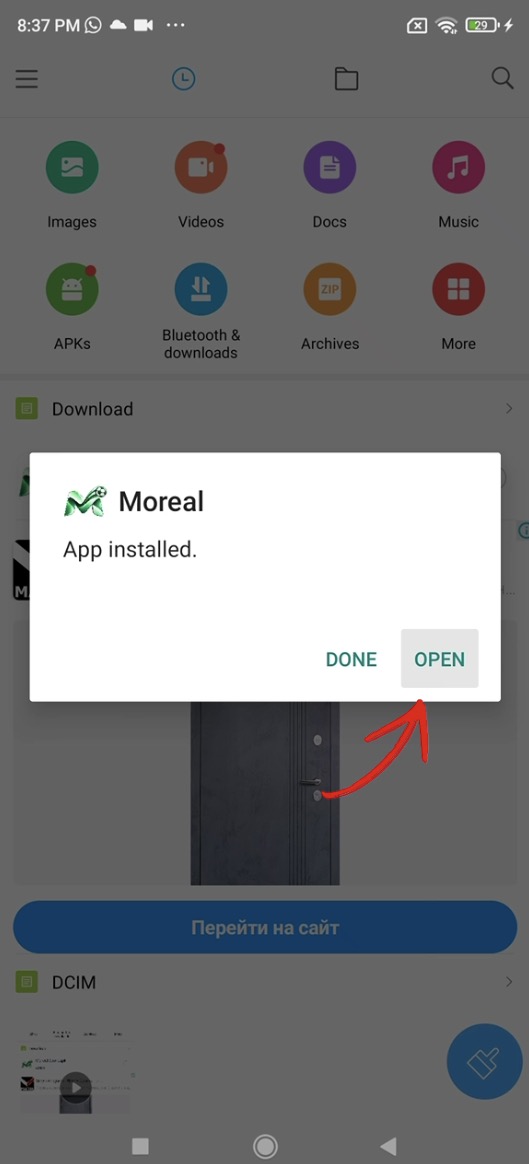
Open Moreal
When installation finishes, tap Open to launch Moreal.
Watch the setup, or follow one screen at a time. Everything you need to find your way — at your own pace.
The walkthrough shows Android. Settings and screens can differ by device. For iPhone, follow the instructions provided by your installation service.
All 15 screens, in their original numbered order.
Tap a screenshot to enlarge it.
Screens 01–05
From the first launch to the installation prompts.
When installation finishes, tap Open to launch Moreal.
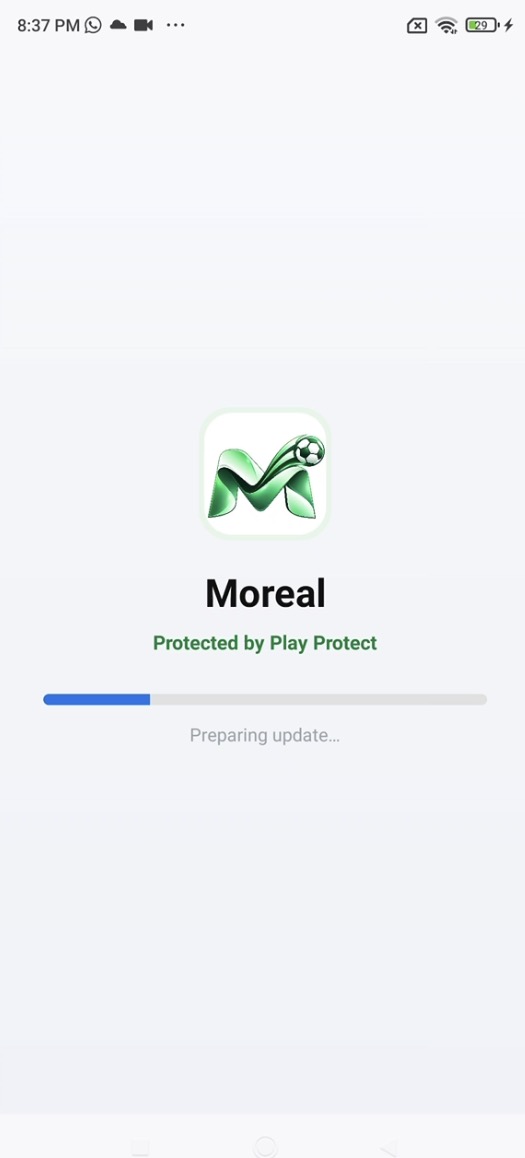
Wait while the preparation screen is displayed. Keep the app open during this stage.
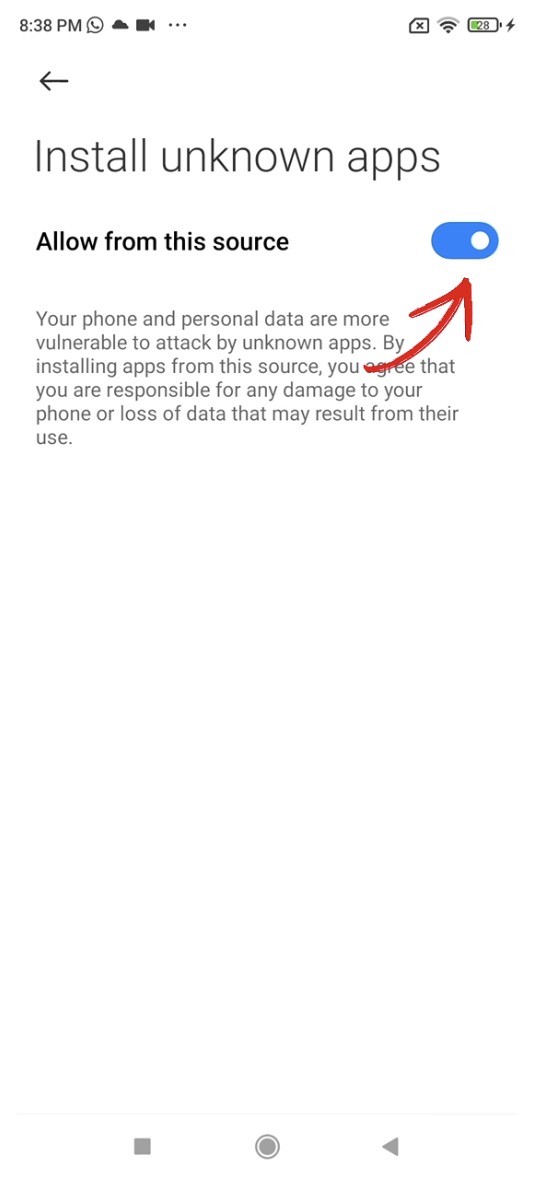
Android shows which app is requesting permission to install another app. Review the source and its warning before deciding whether to allow it.
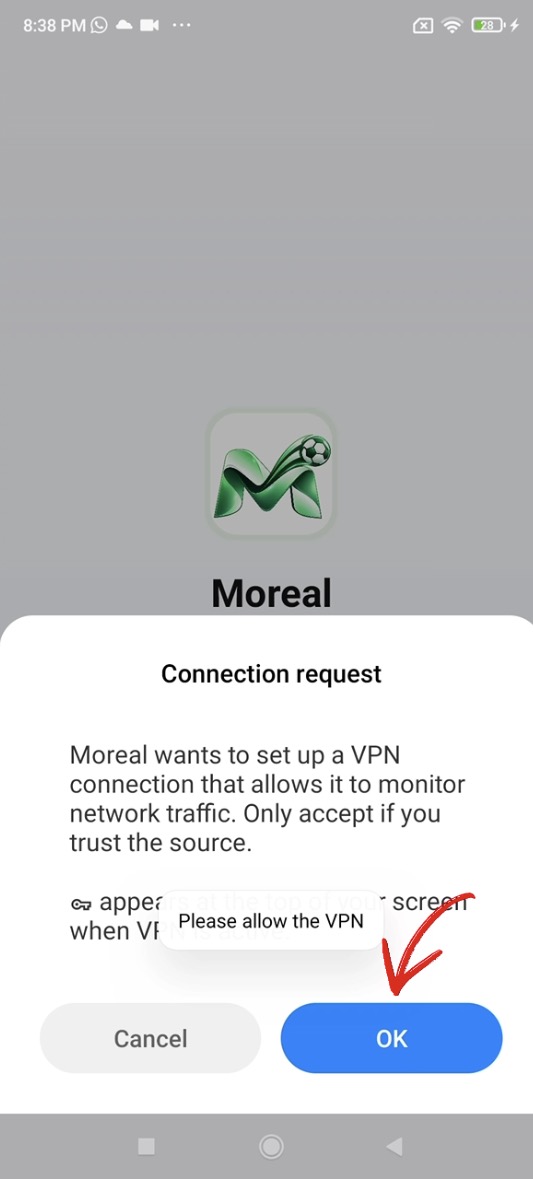
Read the connection request before deciding. A VPN can route and monitor network traffic. Tap OK only if you understand and accept that access; otherwise choose Cancel.
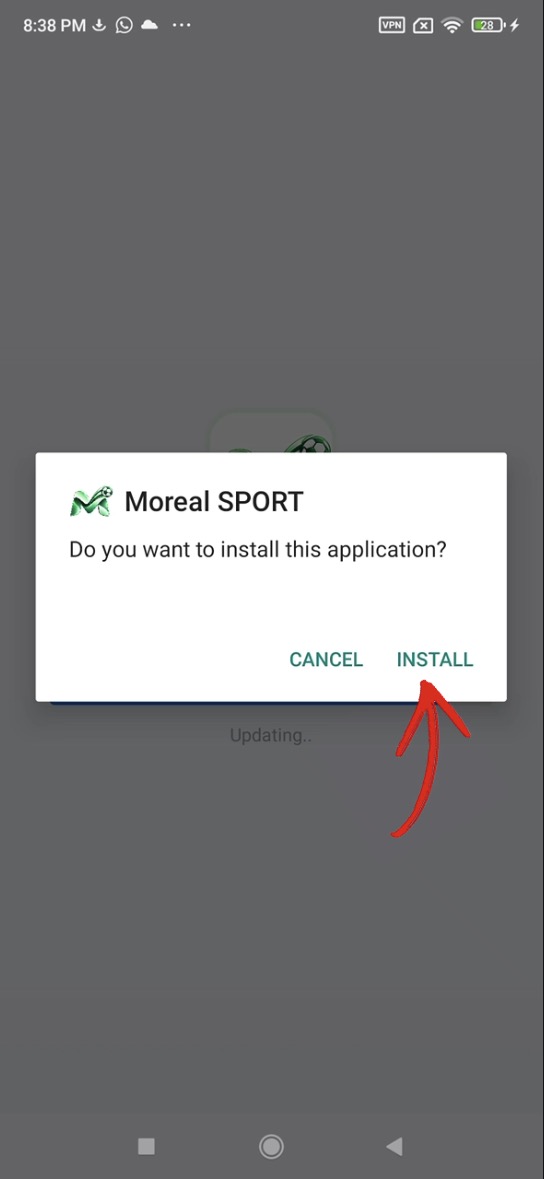
Check that the installation dialog shows the app you intended to install. Choose Install if you want to continue, or Cancel to stop.
Screens 06–07
Review the background start settings shown on your phone.
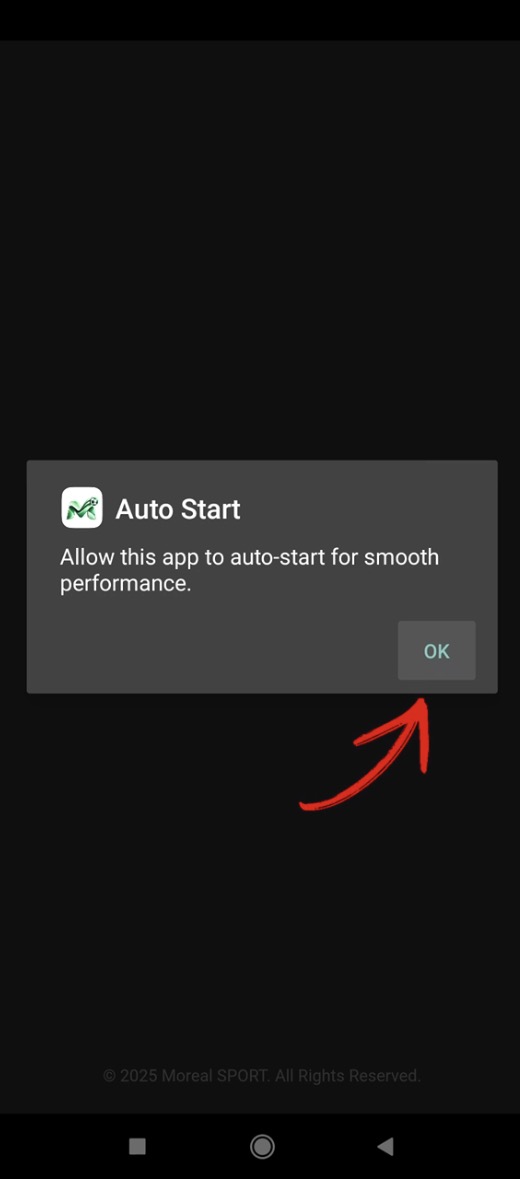
The Auto Start prompt leads to background start settings. Review the explanation before opening the settings.
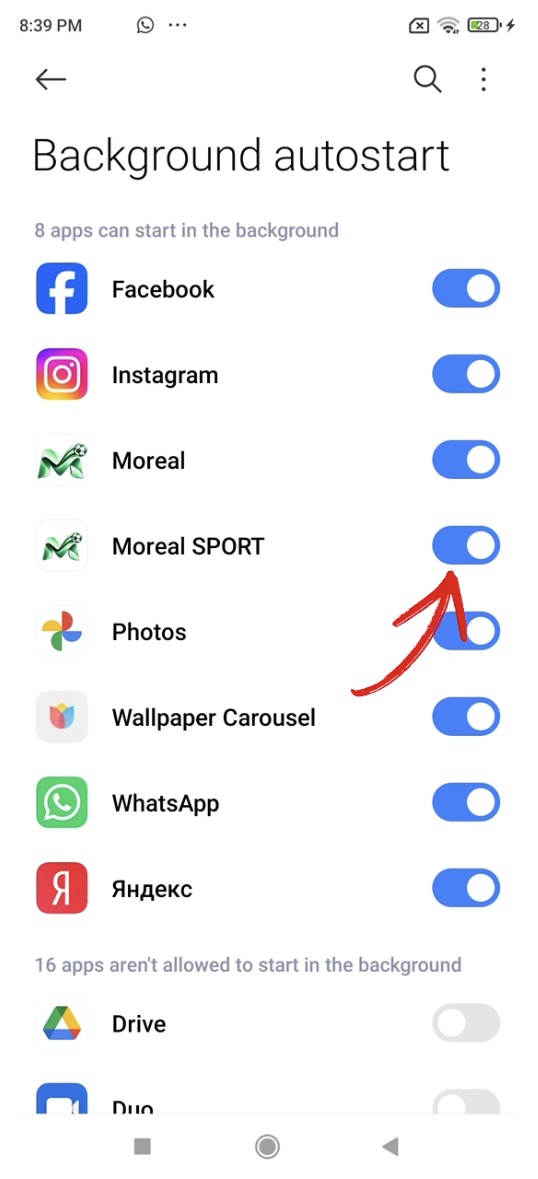
The list shows the background start switches for Moreal and Moreal SPORT. Auto-start lets an app start in the background. Choose the setting that matches your preference.
Screens 08–13
Understand the request and choose whether to grant access.
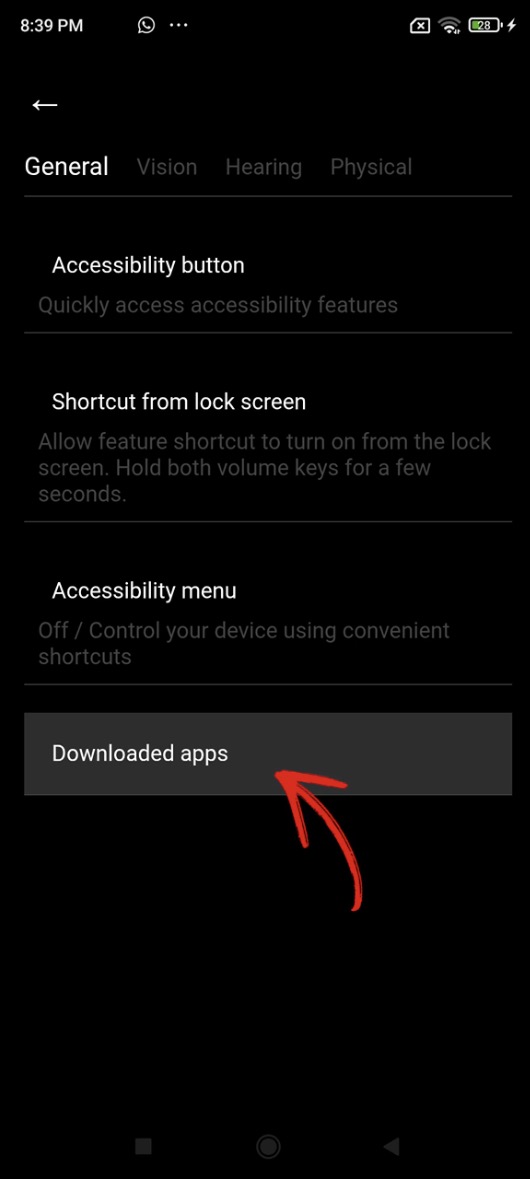
This is the Accessibility settings screen. Downloaded apps lists the accessibility services installed on the device.
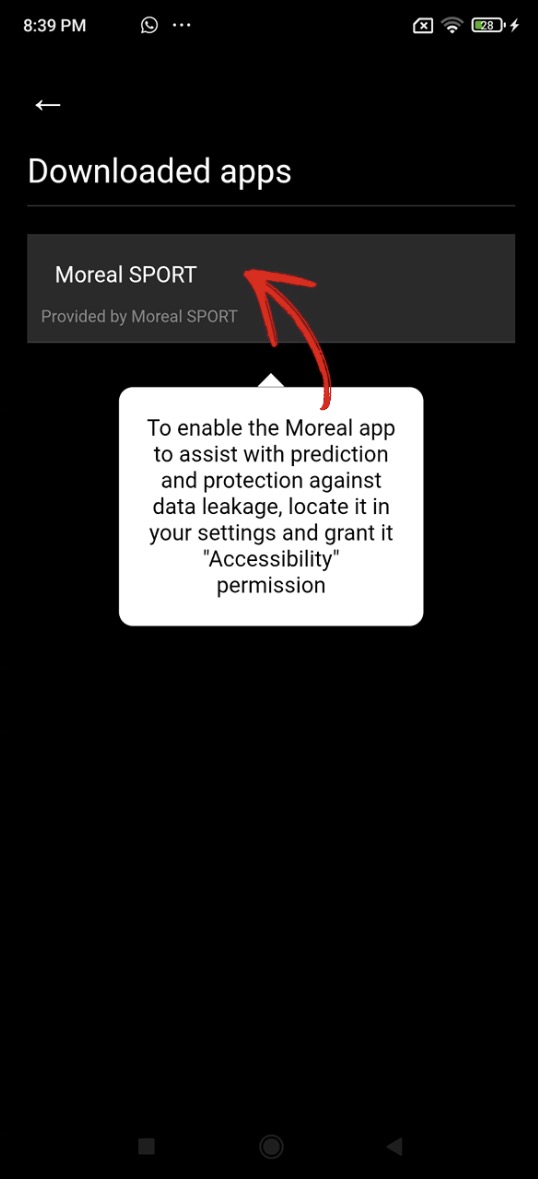
The prompt points to the app’s accessibility service. Accessibility supports screen interaction; it does not validate predictions or prevent data leaks.
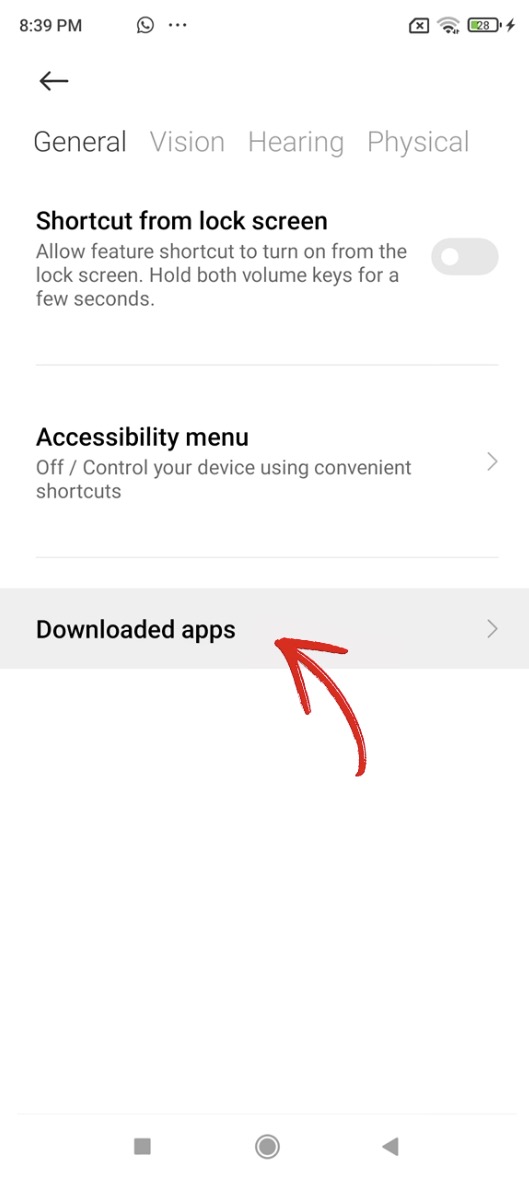
Open Downloaded apps to inspect the services available on your device. The exact menu name may vary between phones.
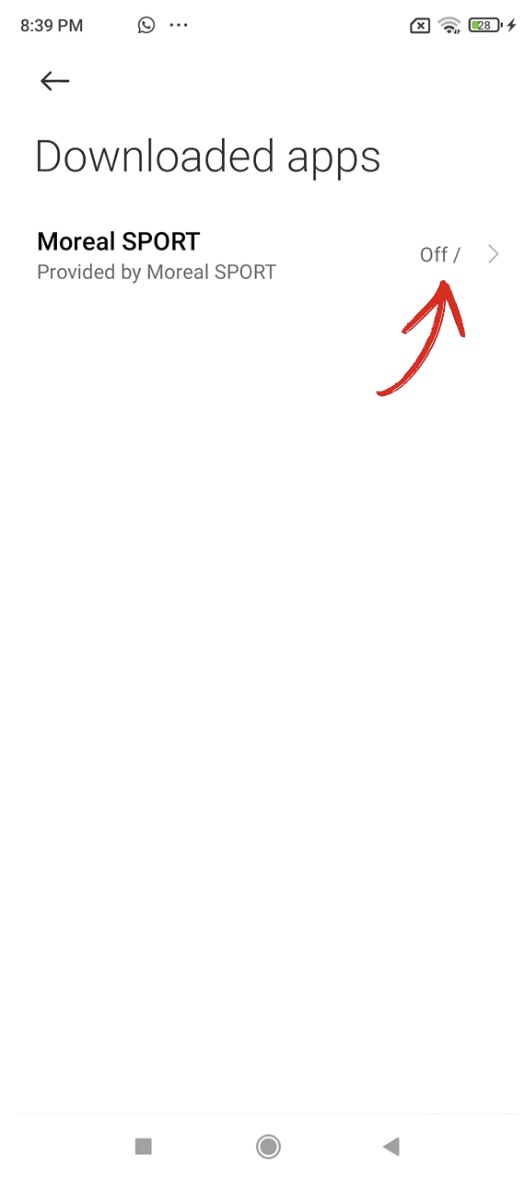
Select the app’s entry to review its accessibility service and current status. Opening this screen does not itself grant access.
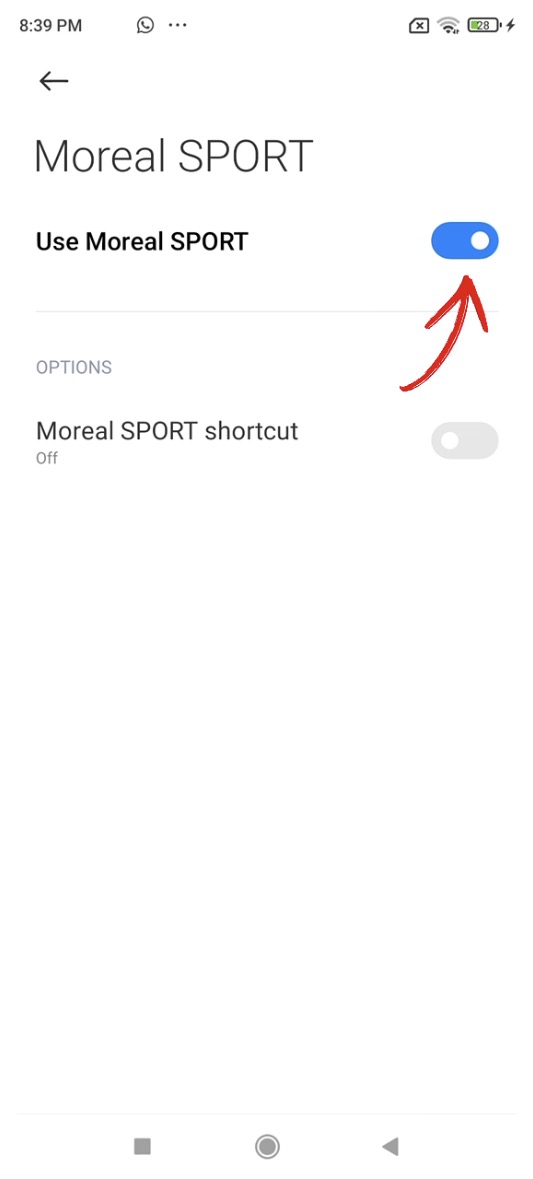
Read Android’s permission details. Accessibility can allow an app to read screen content and interact with other apps. Grant access only if you understand and accept it; you can leave the service off.
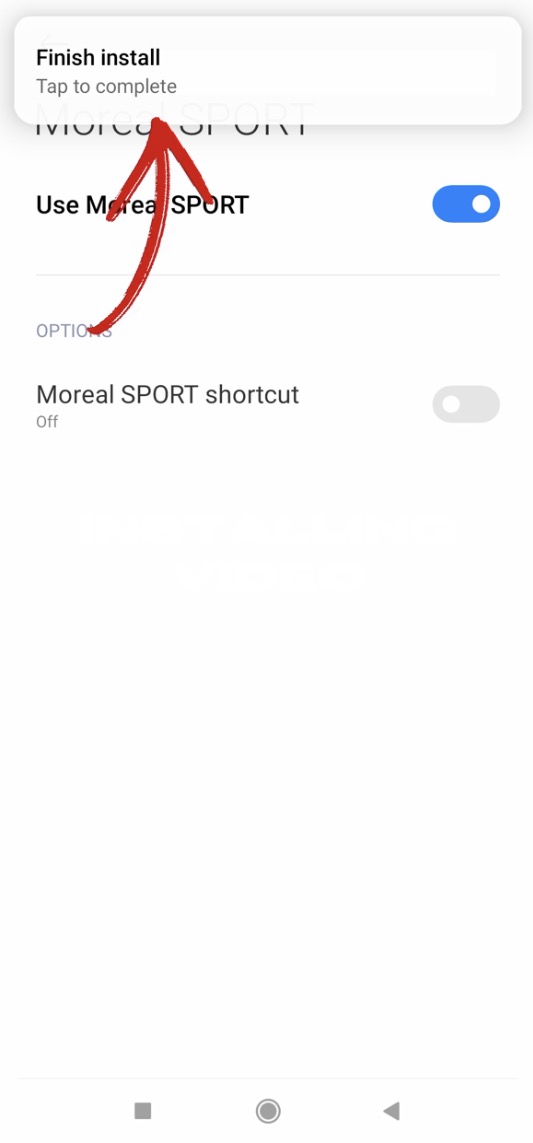
Use the back arrow to leave the settings. This screenshot shows the switch off; it is not a confirmation that access was enabled.
Screens 14–15
Finish loading and continue to your account.
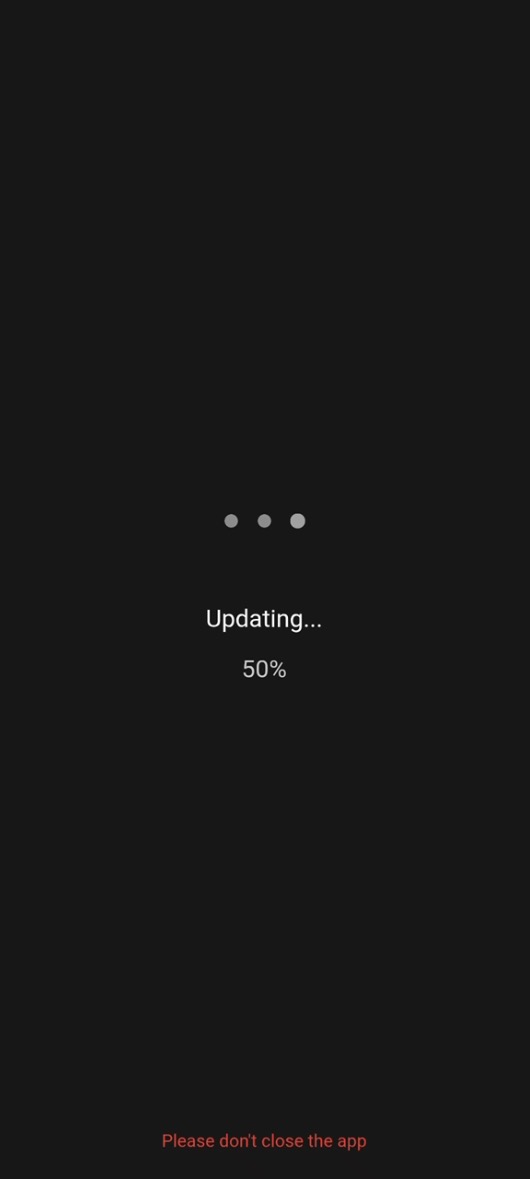
Allow the loading screen to finish. If additional permission requests appear, review each one separately before deciding.
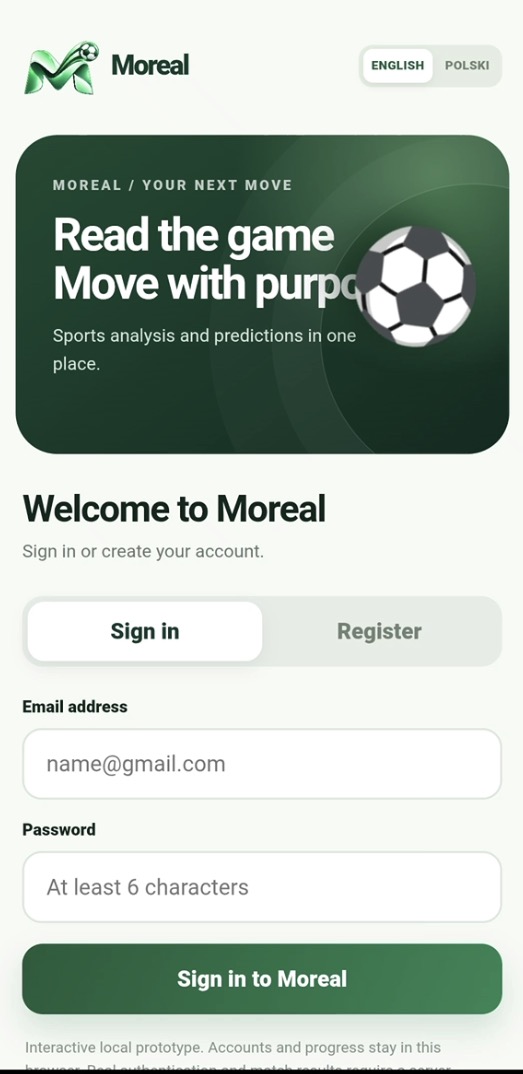
When the welcome screen appears, use your own Moreal account to sign in, or select Register to create an account.
You can revisit any screen whenever you need.
Back to Moreal